Bedienungsanleitung Hitachi 50HK5000 LED fernseher

Benötigen Sie ein Bedienungsanleitung für Ihren Hitachi 50HK5000 LED fernseher? Unten können Sie das PDF-Bedienungsanleitung kostenlos auf Deutsch ansehen und herunterladen. Für dieses Produkt gibt es derzeit 12 häufig gestellte Fragen, 0 Kommentare und 0 Stimmen. Wenn dies nicht das von Ihnen gewünschte Bedienungsanleitung ist, kontaktieren Sie uns bitte.

Ist Ihr Produkt defekt und bietet die Bedienungsanleitung keine Lösung? Gehen Sie zu einem Repair Café, wo es gratis repariert wird.

Bedienungsanleitung

Loading…
English - 7 -
To turn the TV off: Press the centre of the joystick in
and hold it down for a few seconds, the TV will turn
into standby mode.
To turn on the TV: Press the centre of the joystick in,
the TV will turn on.
Note: Main menu OSD cannot be displayed via control button.
Operation with the Remote Control
Press the Menu button on your remote control to
display main menu. Use the directional buttons and
OK button to navigate and set. Press Return/Back
or Menu button to quit a menu screen.
Input Selection
Once you have connected external systems to your
TV, you can switch to different input sources. Press the
Source button on your remote control consecutively
to select the different sources.
Changing Channels and Volume
You can change the channel and adjust the volume
by using the Programme +/- and Volume +/- buttons
on the remote.
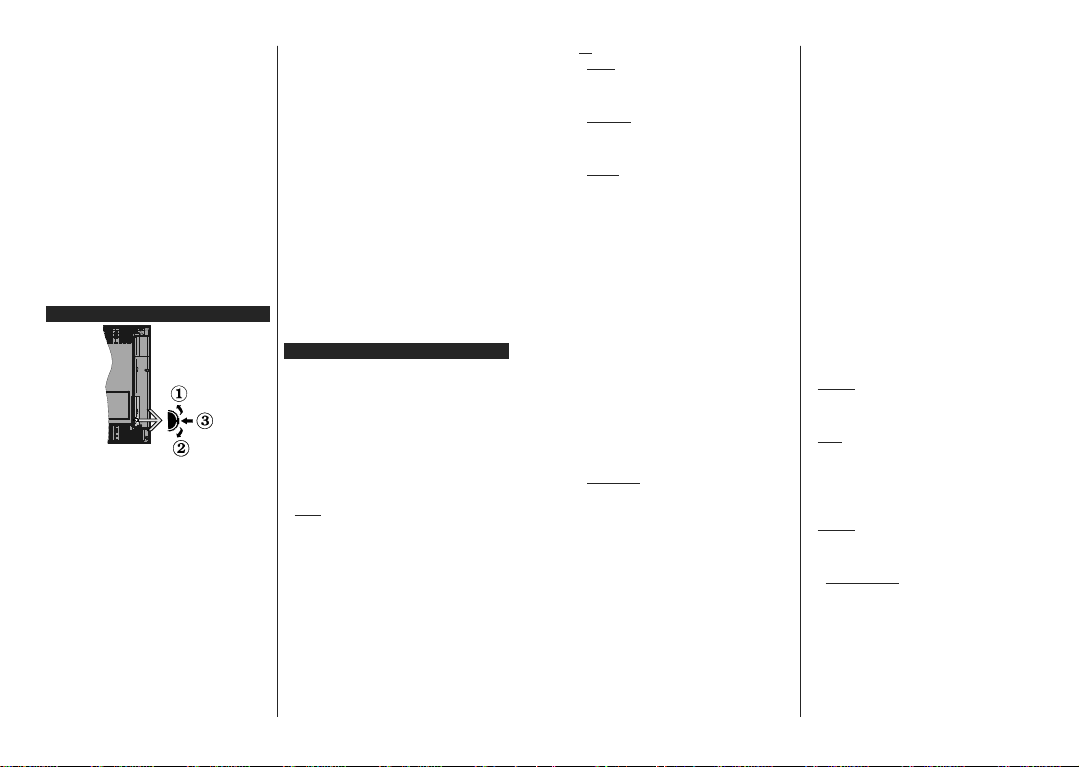
TV Control Switch & Operation
1. Up direction
2. Down direction
3. Volume / Info / Sources List selection and
Standby-On switch
The Control button allows you to control the Volume
/ Programme / Source and Standby-On functions of
the TV.
To change volume: Increase the volume by pushing
the button up. Decrease the volume by pushing the
button down.
To change channel: Press the middle of the button
in, the information banner will appear on the screen.
Scroll through the stored channels by pushing the
button up or down.
To change source: Press the middle of the button in
twice(for the second time in total), the source list will
appear on the screen. Scroll through the available
sources by pushing the button up or down.
To turn the TV off: Press the middle of the button in
and hold it down for a few seconds, the TV will turn
into standby mode.
To turn on the TV: Press the middle of the button in,
the TV will turn on.
Notes:
If you turn the TV off, this cycle starts again beginning with
the volume setting.
Main menu OSD cannot be displayed via control button.
Operation with the Remote Control
Press the Menu button on your remote control to
display main menu. Use the directional buttons and
OK button to navigate and set. Press Return/Back
or Menu button to quit a menu screen.
Input Selection
Once you have connected external systems to your
TV, you can switch to different input sources. Press the
Source button on your remote control consecutively
to select the different sources.
Changing Channels and Volume
You can change the channel and adjust the volume
by using the Programme +/- and Volume +/- buttons
on the remote.
Using Main TV Menu
When the Menu button is pressed, the main TV menu
will appear at the bottom of the screen. You can
navigate through the menu items using the directional
buttons on the remote. To select an item or see the
sub-menu options of the highlighted menu press OK
button. When you highlight a menu option some of the
sub-menu items of this menu may appear on the upper
side of the menu bar for quick access. To use a quick
access item highlight it, press OK and set as desired
XVLQJWKH/HIW5LJKWGLUHFWLRQDOEXWWRQV:KHQ¿QLVKHG
press OK or Back/Return button to exit.
Press Exit button to close the main menu.
1. Home
When main menu is opened Home menu bar will
be highlighted. The content of the Home menu can
be customised by adding options from other menus.
Just highlight an option and press the Down direction
button on the remote. If you see Add to Home option
you can add it to the Home menu. Same way you
can delete or change the position of any item in the
Home menu. Press the Down direction button and
select Delete or Move option and press OK. In order
to move a menu item use the Right and Left direction
buttons to select the position that you want the item
to move to and press OK.
English - 8 -
2. TV
2.1. Guide
You can access the electronic programme guide menu
using this option. Refer to Electronic Programme
Guide section for more information.
2.2. Channels
You can access the Channels menu using this option.
Refer to Using the Channel List section for more
information.
2.3. Timers
You can set timers for future events using the options of
this menu. You can also review the previously created
timers under this menu.
To add a new timer select the Add Timer tab using the
Left/Right buttons and press OK. Set the sub-menu
RSWLRQVDVGHVLUHGDQGZKHQ¿QLVKHGSUHVVOK. A new
timer will be created.
To edit a previously created timer, highlight that timer,
select the Edit Selected Timer tab and press OK.
Change the sub-menu options as desired and press
OK to save your settings.
To cancel an already set timer, highlight that timer,
select Delete Selected Timer tab and press OK. A
FRQ¿UPDWLRQPHVVDJHZLOOEHGLVSOD\HG+LJKOLJKWYes
and press OK to proceed. The timer will be cancelled.
It is not possible to set timers for two or more events
that will broadcasted in different channels at the same
time interval. In this case you will be asked to choose
one of these timers and cancel others. Highlight the
timer you want to cancel and press OK, Options menu
will be displayed. Then highlight Set/Cancel and press
OK to cancel that timer. You will have to save changes
after that. In order to do that press OK, highlight Save
Changes and press OK again.
2.4. Recordings
You can manage your recordings using the options
of this menu. You can playback, edit, delete or sort
previously recorded events. Highlight a tab by using
the Left or Right direction button and press OK to see
available options.
Recording Settings
<RXFDQDOVRFRQ¿JXUH\RXUUHFRUGLQJSUHIHUHQFHV
using the Settings tab in the Recordings menu.
Highlight Settings tab by using Left or Right button
and press OK. Then select the desired item in the
sub-menu and set by using Left or Right button.
Start early: You can set recording timer’s starting
time to start earlier by using this setting.
End late: You can set recording timer’s end time to
end later by using this setting.
Max Timeshift: This setting allows you to set the
maximum duration for the timeshift recording.
Available options are approximate and the actual
recording time may change in practice depending on
the broadcast. The reserved and free storage space
values will change according to this setting. Make
sure that you have enough free space otherwise
instant recording may not be possible.
Auto discard: You can set the Discard type as
None, Oldest, Longest or Shortest. If it is not
set to None, you can set the Unplayed option as
Included or Excluded. These options determine
the preferences for deleting the recordings in order
to obtain more storage space for ongoing records.
Hard disk information: You can view detailed
information about the USB storage device connected
to your TV. Highlight and press OK to see and press
Back/Return to close.
Format Disk: ,I\RXZDQWWRGHOHWHDOO¿OHVRQWKH
connected USB storage device and convert the disk
format to FAT32, you can use this option. Press OK
button while the Format Disk option is highlighted.
A menu will appear on the screen, requiring you
to enter the PIN(*). After you enter the PIN, a
FRQ¿UPDWLRQPHVVDJHZLOOEHGLVSOD\HG6HOHFWYes
and press OK to start formatting the USB storage
device. Select No and press OK to cancel.
(*) Default PIN could have been set to 0000 or 1234. If you
KDYHGH¿QHGWKH3,1LVUHTXHVWHGGHSHQGLQJRQWKHFRXQWU\
selection) during the First Time Installation use the PIN
WKDW\RXKDYHGH¿QHG
3. Settings
You can manage the settings of your TV using the op-
tions of this menu. Refer to Settings Menu Contents
section for more information.
4. Apps
When your TV is connected to the Internet related
contents will also be available, including Apps related
contents. Using the Apps menu you can access and
manage your applications. You can add new apps from
the market or delete the existing ones. Refer to Apps
section for more information.
5. Sources
You can manage your input source references using
the options of this menu. To change the current source
highlight one of the options and press OK.
5.1. Source Settings
Edit the names, enable or disable selected source
options. There are also Regular, Enhanced and
Disabled options available for HDMI sources. Regular
and Enhanced options are affecting the colour settings
of the selected HDMI source. To be able to watch 4K or
HDR/HLG images from an HDMI source related source
setting should be set as Enhanced if the connected
device is compatible with HDMI 2.0 and subsequent
versions. Set as Regular if the connected device is
HDMI 1.4 compatible. Set accordingly or disable the
related HDMI source by setting as Disabled.
Download Bedienungsanleitung auf Deutsch (PDF, 5.21 MB)
(Denken Sie an die Umwelt und drucken Sie diese Bedienungsanleitung nur aus, wenn es unbedingt nötig ist)

Loading…

Bewertung

Teilen Sie uns mit, was Sie über die Hitachi 50HK5000 LED fernseher denken, indem Sie eine Produktbewertung verfassen. Möchten Sie Ihre Erfahrungen mit diesem Produkt teilen oder eine Frage stellen? Hinterlassen Sie einen Kommentar am Ende dieser Seite!
Sind Sie mit Hitachi 50HK5000 LED fernseher zufrieden?
Ja Nein
Seien Sie die erste Person, die dieses Produkt bewertet
0 Bewertungen

Diskutieren Sie über dieses Produkt mit

Hier können Sie uns Ihre Meinung zu Hitachi 50HK5000 LED fernseher mitteilen. Wenn Sie eine Frage haben, lesen Sie zunächst das Bedienungsanleitung sorgfältig durch. Die Anforderung eines Bedienungsanleitung kann über unser Kontaktformular erfolgen.

Mehr zu diesem Bedienungsanleitung

Wir verstehen, dass es schön ist, ein gedrucktes Bedienungsanleitung für Ihr Hitachi 50HK5000 LED fernseher zu haben. Sie können das Bedienungsanleitung jederzeit von unserer Website herunterladen und selbst ausdrucken. Wenn Sie ein Originalhandbuch wünschen, empfehlen wir Ihnen, Hitachi zu kontaktieren. Möglicherweise können sie ein Originalhandbuch bereitstellen. Suchen Sie das Bedienungsanleitung Ihres Hitachi 50HK5000 LED fernseher in einer anderen Sprache? Wählen Sie auf unserer Homepage Ihre bevorzugte Sprache und suchen Sie nach der Modellnummer, um zu sehen, ob wir sie verfügbar haben.

Spezifikationen

Marke Hitachi
Modell 50HK5000
Kategorie LED fernseher
Dateityp PDF
Dateigröße 5.21 MB

Alle Anleitungen für Hitachi LED fernseher
Weitere Anleitungen von LED fernseher

Häufig gestellte Fragen zu Hitachi 50HK5000 LED fernseher

Unser Support-Team sucht nach nützlichen Produktinformationen und beantwortet Ihre häufig gestellten Fragen. Sollte Ihnen ein Fehler bei den häufig gestellten Fragen auffallen, teilen Sie uns dies bitte anhand unseres Kontaktformulars mit.

Wie verbinde ich eine Universalfernbedienung mit meinem Fernseher? Verifiziert

Um Ihre Universalfernbedienung mit Ihrem Fernseher zu verbinden, benötigen Sie die Modellnummer und den Marken Namen der Fernbedienung und des Fernsehers. Im Handbuch der Fernbedienung befindet sich eine Liste mit den Codes für die jeweiligen Marken und Modellnummern.

Das war hilfreich (5079) Mehr lesen

Ich möchte einen Lautsprecher mittels HDMI mit meinem LED-Fernseher verbinden. Welchen Anschluss soll ich verwenden? Verifiziert

Sie müssen den HDMI-ARC-Anschluss verwenden, welcher speziell für den Anschluss von Audiogeräten konzipiert wurde.

Das war hilfreich (2367) Mehr lesen

Ist es wichtig, über welchen HDMI-Anschluss ich mein Gerät anschließe? Verifiziert

Generell können Sie Geräte, wie etwa einen Blu-ray-Player oder eine Spielkonsole, über jeden HDMI-Anschluss anschließen. Das Gerät kann anschließend verwendet werden, indem Sie den entsprechenden HDMI-Kanal auf Ihrem Fernseher auswählen.

Das war hilfreich (1189) Mehr lesen

Wie kann ich messen, wie viel Zoll mein LED-Fernseher hat? Verifiziert

Die Größe Ihres LED-Fernsehers in Zoll bezieht sich auf die Bildschirmdiagonale, beispielsweise von der linken oberen Ecke des Bildschirms bis zur rechten unteren Ecke (ohne Rand). Ein Zoll entspricht dabei 2,54 Zentimeter. Eine Bildschirmdiagonale von 99 Zentimetern bedeutet dementsprechend, dass Ihr LED-Fernseher 39 Zoll hat.

Das war hilfreich (942) Mehr lesen

Funktioniert meine Fernbedienung auch bei anderen Fernsehgeräten/Modellen der gleichen Marke? Verifiziert

Häufig funktioniert eine TV-Fernbedienung auch bei ähnlichen Modellen der gleichen Marke. Es ist jedoch ungewöhnlich, dass sie bei allen Modellen dieser Marke funktioniert. Universalfernbedienungen sind dazu besser geeignet.

Das war hilfreich (667) Mehr lesen

Worin besteht der Unterschied zwischen LCD und LED? Verifiziert

Beide Techniken verwenden einen LCD-Bildschirm, der selbst kein Licht abgibt. Der Unterschied liegt in der Beleuchtung hinter dem Bildschirm. Bei LCD-Bildschirmen geschieht dies durch CCFL (Kaltkathoden-Leuchtstofflampen) und LED nutzt LED-Leuchten.

Das war hilfreich (531) Mehr lesen

Was bedeutet HDMI? Verifiziert

HDMI ist die Abkürzung für High Definition Multimedia Interface. HDMI ist eine Schnittstelle zur Übertragung von hochauflösenden Video- und Audio-Daten von einem Gerät auf ein anderes.

Das war hilfreich (456) Mehr lesen

Kann ich einen fehlerhaften, „toten“ Pixel selbst korrigieren? Verifiziert

Es gibt einen Unterschied zwischen einem „toten“ und einem „festgeklebten“, einem sogenannten Stuck-Pixel. Ein Stuck-Pixel ist noch farbig und kann unter Umständen korrigiert werden, indem leichter Druck exakt auf den Pixel ausgeübt wird, bis er sich selbst erneuert. Ein toter Pixel ist jedoch immer entweder schwarz oder weiß, und Sie können ihn nicht selbst korrigieren.

Das war hilfreich (424) Mehr lesen

Was ist das Kontrastverhältnis? Verifiziert

Das Kontrastverhältnis gibt Auskunft darüber, wie weit das weißeste Weiß vom schwärzesten Schwarz entfernt ist. Ein Kontrastverhältnis von beispielsweise 400:1 bedeutet, dass das schwärzeste Schwarz auf dem Bildschirm 400 Mal dunkler ist als das weißeste Weiß. Ein hohes Kontrastverhältnis trägt zur Bildschärfe bei.

Das war hilfreich (402) Mehr lesen

Wie reinige ich meinen LED-Fernseher richtig? Verifiziert

Schalten Sie den Fernseher aus und wischen Sie Staub und Schmutz mit einem Mikrofaserlappen ab. Verwenden Sie nie Papiertücher, da diese Kratzer verursachen können. Üben Sie nicht zu viel Druck aus, um keine Pixel-Schäden zu verursachen. Verwenden Sie ein spezielles Reinigungsmittel oder mischen Sie einen Teil Essig mit einem Teil Wasser. Befeuchten Sie ein Tuch mit dem Reinigungsmittel und reinigen Sie den Bildschirm. Stellen Sie jedoch sicher, dass das Tuch nicht zu nass ist. Entfernen Sie Flecken, indem Sie mit kreisenden Bewegungen darüberfahren. Trocknen Sie den Bildschirm mit einem zweiten Mikrofasertuch, um Streifenbildung vorzubeugen.

Das war hilfreich (353) Mehr lesen

Was ist der optimale Sichtabstand zu meinem Fernseher? Verifiziert

Dies hängt zum Teil von ihrer persönlichen Vorliebe ab, aber als Faustregel gilt: Der optimale Abstand beträgt etwa 3x die diagonale Bildschirmgröße des Fernsehers. Bei einem Bildschirm von 60 Zoll (152cm) würde der optimale Sichtabstand demnach 180 Zoll bzw. 4,5 Meter betragen.

Das war hilfreich (353) Mehr lesen

Wieso hat es auf der Fernbedienung Buchstaben neben den Zahlen? Verifiziert

Bei gewissen Fernseher-Einstellungen müssen Sie möglicherweise Buchstaben eingeben. Gewöhnlich gibt es pro Taste drei Buchstaben oder andere Zeichen. Wenn Sie Buchstaben eingeben müssen, können Sie die entsprechende Taste einmal/zweimal/dreimal drücken, für den ersten/zweiten/dritten Buchstaben. Dies ermöglicht die Texteingabe mit einem Minimum an Tasten.

Das war hilfreich (353) Mehr lesen

Bedienungsanleitung Hitachi 50HK5000 LED fernseher

Verwandte Produkte

Verwandte Kategorien

×
Download