ENG
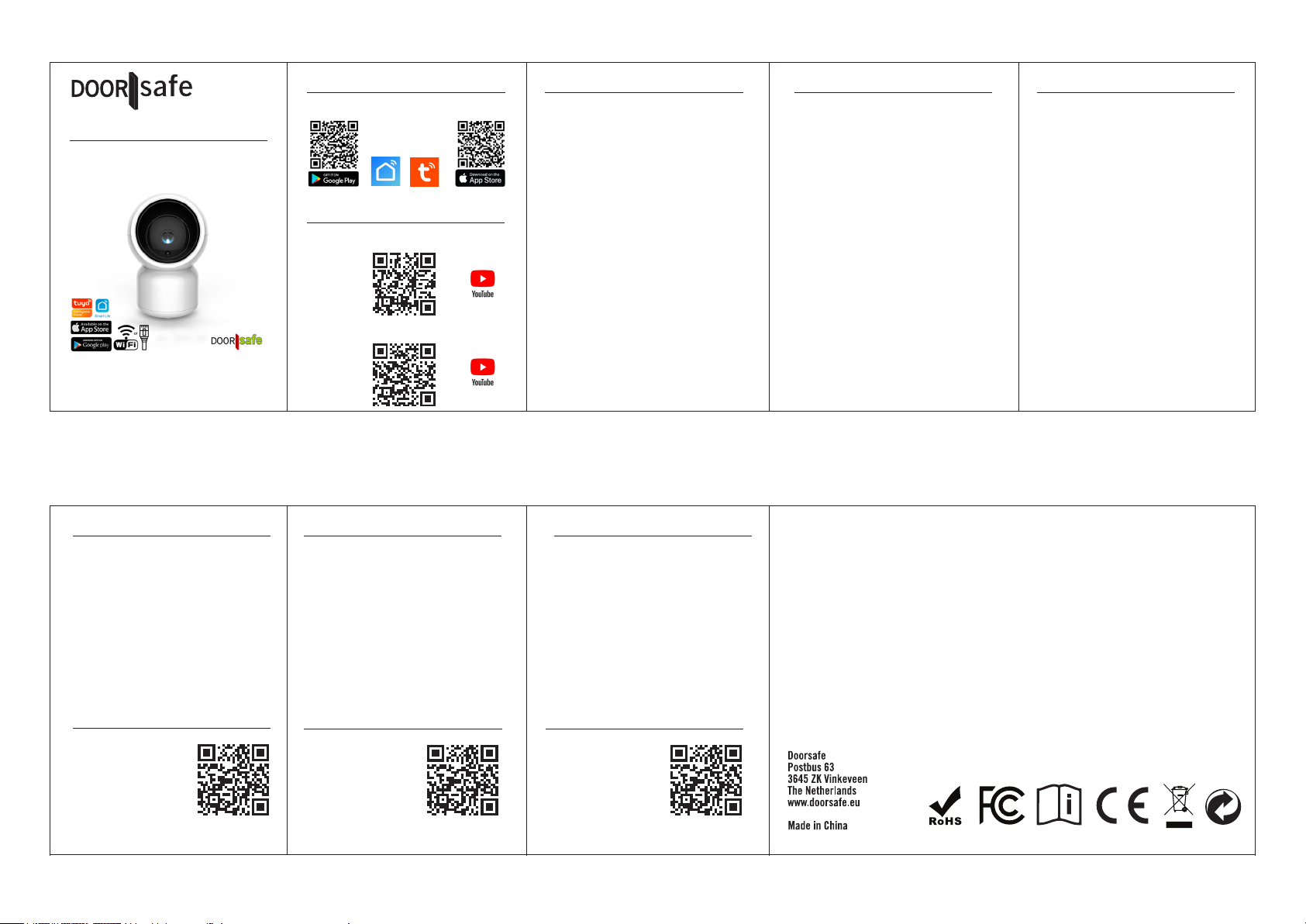
DS3122 Security camera
Smart Life
or
Tuya Smart
(=same app)
APP DOWNLOAD
→ Download the app:
YOUTUBE TUTORIALS
CONNECT WITH WIFI
CONNECT WITH NETWORK CABLE
CONNECT WITH WIFI
→ Connect power to camera
→ Camera now says: “wait for Wi-Fi cong”
→ Let smartphone connect to own
2.4GHz. WiFi network
→ Choose in the app:
‘Add Device’ or ‘+’ and ‘Add Device’
→ The camera will appear at the top of the app
→ If not, choose ‘Camera
& Lock’ & “Smart Camera (Wi-Fi)”
→ At the top right should be ‘QR Code’
→ Check and press ‘Next’
→ Enter your own Wi-Fi password
→ Have the camera scan the QR code by
pointing the camera at the QR code
→ Wait for camera to say: ‘Connect router’
→ Press: I heard Prompt
→ Change the name if necessary
& press Done
→ If necessary, insert the SD card into the
camera by pointing the camera all the way up
and then the opening for inserting the SD card
will appear at the bottom.
CONNECT WITH NETWORK CABLE
→ Connect power to camera
→ Camera now says: “wait for Wi-Fi cong”
→ Let smartphone connect to own 2.4GHz.
WiFi network
→ Choose in the app:
‘Add Device’ or ‘+’ and ‘Add Device’
→ The camera will appear at the top of the app
→ If not, choose ‘Camera & Lock’
& “Smart Camera (Wi-Fi)”
→ Top right set to ‘Cable’
→ Check and press ‘Next’
→ Wait for camera to say: ‘Connect router’
→ Change the name if necessary
& press Done
→ If necessary, insert an SD card into the
camera
RESET
→ Turn the camera all the way up
→ Press the small reset button for 5 seconds
→ Camera says: Reset, camera reboot
→ Camera now says: “wait for Wi-Fi cong”
SETTINGS
→ PLAYBACK - view images stored on SD card
back in the app
→ GALLERY - view images stored on the
smartphone
→ THEME COLOR - choose light or dark mode
→ PRIVATE MODE - turn off camera
→ NIGHT MODE - manually switch between
night vision via infrared or white light LEDs
→ MOTION TRACKING - let camera follow
moving people (not perfect)
→ MOTION DETECTION - let the app give a
push notication when motion is detected
→ SOUND DETECTION - let the app give a
push notication when sound is heard
→ PATROL - run camera continuously or on a
full schedule or from site to site
→ SIREN - let the camera speaker sound a
siren, volume & duration can be set
→ SMART - imagine a scenario
→ CLOUD - option: save images to the cloud
→ SITE - set favorite camera directions
→ DIRECTION - move camera manually
→ MESSAGES - view a log
→ HD / SD - switch between image quality
→ ONVIF - turn on switch and enter password,
must start with a capital letter and 1 number
and contain several letters + view IP address
WWW.DOORSAFE.EU
TOEVOEGEN AAN SCHERM DS6669/DS7796
→ Op scherm open instellingen
→ Kies: voeg nieuwe apparaten toe
→ Laat scherm zoeken in het netwerk.
Scherm camera moet dus met dezelfde
internet router verbonden zijn.
→ Naast IP adres van camera druk op +
→ Voer in:
User: admin
Wachtwoord: admin
→ Kies: AANMELDEN
ZUM BILDSCHIRM DS6669/DS7796 HINZUFÜGEN
→ Öffnen Sie die Einstellungen auf dem
Bildschirm
→ Wählen Sie: Neue Geräte hinzufügen
→ Bildschirm im Netzwerk suchen lassen.
Die Bildschirmkamera muss daher mit
demselben Internetrouter verbunden sein.
→ Drücken Sie neben der IP-Adresse der
Kamera auf +
→ Geben Sie ein:
Benutzer: admin
Passwort: admin
→ Wählen Sie: ANMELDEN
ADD TO SCREEN DS6669/DS7796
→ On screen open settings
→ Select: Add new devices
→ Let screen search in the network.
Screen camera must therefore be
connected to the same internet router.
→ Next to IP address of camera press +
→ Enter:
User: admin
Password: admin
→ Choose: LOGIN
180423
BEELDEN BEKIJKEN VIA EEN BROWSER
→ Scan deze QR code
of ga naar:
ipc-eu.ismartlife.me
→ Open app, kies + en
kies: Scan QR code
ANZEIGEN VON BILDERN ÜBER EINEN BROWSER
→ Scannen Sie diesen
QR-Code oder gehen
Sie zu:
ipc-eu.ismartlife.me
→ App öffnen, + wählen
& wählen:
QR-Code scannen
VIEWING IMAGES VIA BROWSER
→ Scan this QR code or
go to:
ipc-eu.ismartlife.me
→ Open app, choose
+ and choose:
Scan QR code



Diskutieren Sie über dieses Produkt mit
Hier können Sie uns Ihre Meinung zu Doorsafe DS3122 Überwachungskamera mitteilen. Wenn Sie eine Frage haben, lesen Sie zunächst das Bedienungsanleitung sorgfältig durch. Die Anforderung eines Bedienungsanleitung kann über unser Kontaktformular erfolgen.