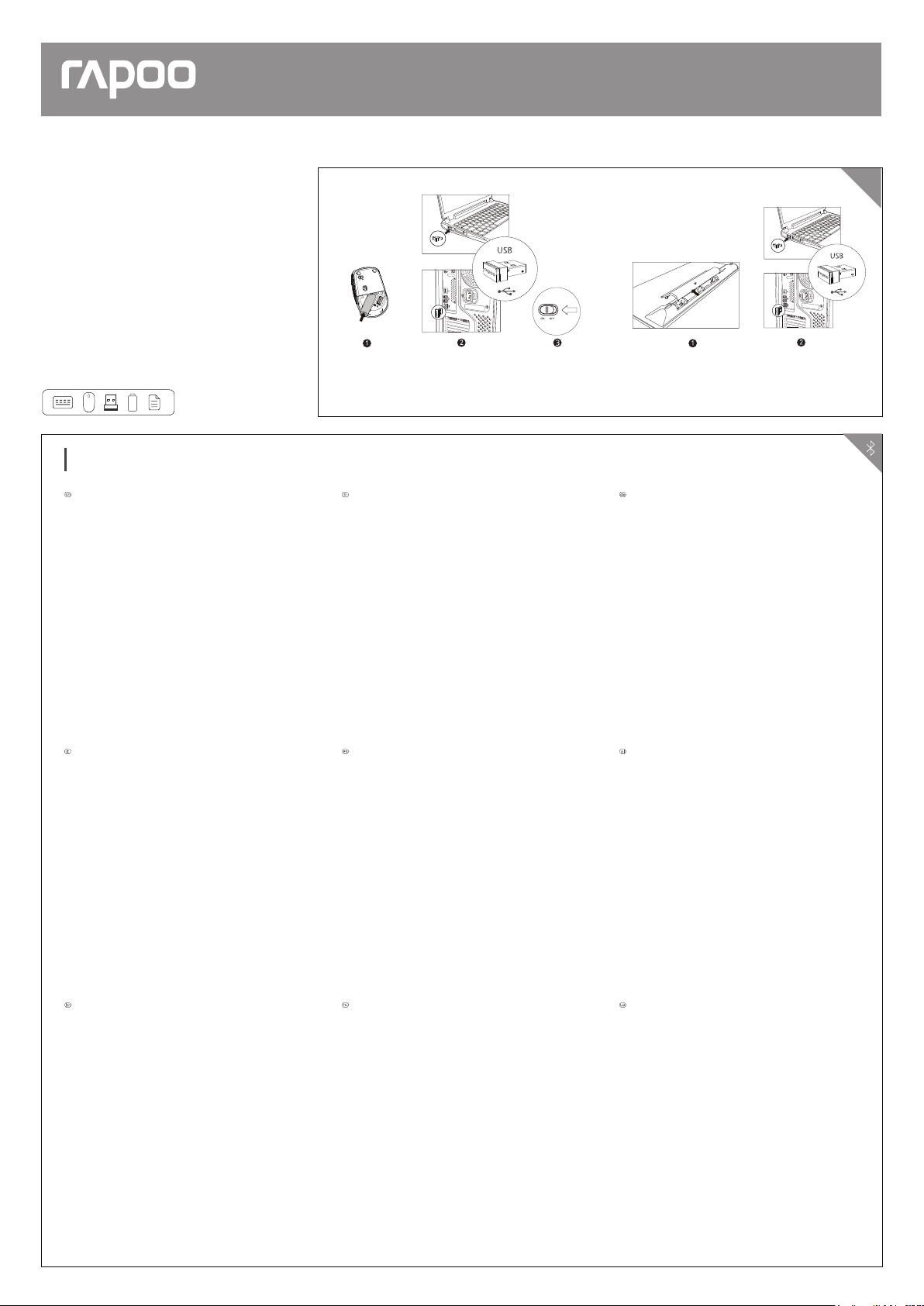
2.4 GHz
Multi-mode Wireless Keyboard & Mouse
Clavier et souris sans fil multi-mode
Kabellose Tastatur und Maus mit mehreren Modi
Mouse/Souris/Maus/Mouse/Ratón/Muis/Rato/Мышь/Миша Keyboard/Clavier/Tastatur/Tastiera/Teclado/Toetsenbord/
Teclado/Клавиатура/Клавіатура
9000M(E6050M+M100)
Quick Start Guide
Guide de démarrage rapide
Schnellstartanleitung
Bluetooth mode / Mode Bluetooth / Bluetooth-Modus / Modalità Bluetooth / Modo Bluetooth /
Bluetooth-modus / Modo Bluetooth / Режим Bluetooth / Режим Bluetooth
Keyboard
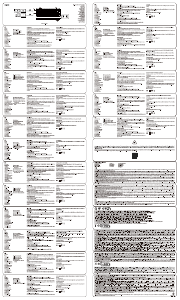
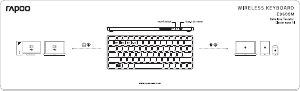
1. Press and hold key combinations, Fn+1, Fn+2 or Fn+3 at least 3 seconds to pair
3 different devices via Bluetooth. The keyboard is discoverable for 60 seconds.
2. Complete Bluetooth pairing on your device.
Mouse
Pair your first device
1. Turn on the mouse.
2. Keep pressing the Bluetooth button at least 3 seconds to pair. The status LED
flashes red slowly. The mouse is discoverable for 2 minutes.
3. Complete Bluetooth pairing on your device. When the mouse and your device
are paired, the light turns off.
Pair your second device
1. Press the Bluetooth button to switch to another channel.
2. Follow step 2 and 3 of "Pair your first device" to connect your second device.
Bluetooth pairing
Windows®7 and 8:
1.Click the "Start" button, then select Control Panel > Add a device
2.Select the keyboard or mouse from the list.*
3.Click Next and follow any other instructions that may appear on the screen.
Windows®10:
1.Click the "Start" button, then select Settings > Devices > Bluetooth.
2.Select the keyboard or mouse from the list.*
3. Click Pair and follow any other instructions that may appear on the screen.
*RAPOO BT3.0 KB/RAPOO BLE KB/Rapoo BleMouse/RAPOO BT3.0 Mouse
Clavier
1. Appuyez et maintenez les combinaisons de touches Fn+1, Fn+2 ou Fn+3 enfoncées
au moins 3 secondes pour appairer 3 appareils différents via Bluetooth. Le clavier
est détectable pendant 60 secondes.
2. Effectuez l'appairage Bluetooth sur votre appareil.
Souris
Appairez votre premier appareil
1. Allumez la souris.
2. Maintenez le bouton Bluetooth enfoncé au moins 3 secondes pour effectuer l'appairage.
La LED de statut clignote lentement en rouge. Le souris peut être détectée pendant 2
minutes.
3. Effectuez l'appairage Bluetooth sur votre appareil. Une fois la souris et votre
appareil appairés, l'indicateur lumineux s'éteint.
Appairez votre deuxième appareil
1. Appuyez sur le bouton Bluetooth pour passer sur un autre canal.
2. Suivez les étapes de 2 et 3 de la section « Appairez votre premier appareil » pour
connecter votre deuxième appareil.
Appairage Bluetooth
Windows®7 et 8:
1.Cliquez sur le bouton "Démarrer", puis sélectionnez Panneau de configuration >
Ajouter un périphérique
2.Sélectionnez le clavier ou la souris dans la liste.*
3.Cliquez sur Suivant et suivez les autres instructions pouvant apparaître à l'écran.
Windows®10:
1.Cliquez sur le bouton "Démarrer", puis sélectionnez Paramètres > Périphériques >
Bluetooth.
2.Sélectionnez le clavier ou la souris dans la liste.*
3. Cliquez sur Appairer et suivez les autres instructions pouvant apparaître à l'écran.
*Clavier RAPOO BT3.0/Clavier RAPOO BLE/Souris Rapoo BleMouse/Souris RAPOO BT3.
Tastatur
1. Halten Sie Tastenkombinationen, Fn+1, Fn+2 oder Fn+3, mindestens 3 Sekunden
gedrückt, um 3 verschiedene Geräte über Bluetooth zu koppeln. Die Tastatur ist 60
Sekunden lang auffindbar.
2. Schließen Sie die Bluetooth-Kopplung an Ihrem Gerät ab.
Maus
Erstes Gerät koppeln
1. Schalten Sie die Maus ein.
2. Halten Sie die Bluetooth-Taste zum Koppeln mindestens 3 Sekunden gedrückt.
Die Status-LED blinkt langsam rot. Die Maus ist 2 Minuten lang sichtbar.
3. Schließen Sie die Bluetooth-Kopplung an Ihrem Gerät ab. Wenn Maus und Gerät
gekoppelt sind, erlischt die Leuchte.
Zweites Gerät koppeln
1. Drücken Sie die Bluetooth-Taste zum Umschalten auf einen anderen Kanal.
2. Befolgen Sie zur Verbindung Ihres zweiten Gerätes die Schritte 2 und 3 unter „Erstes
Gerät koppeln“.
Bluetooth-Kopplung
Windows®7 und 8:
1. Klicken Sie auf die Start-Schaltfläche und wählen Sie Systemsteuerung > Gerät
hinzufügen
2. Wählen Sie Tastatur oder Maus aus der Liste.*
3. Klicken Sie auf Weiter und befolgen Sie möglicherweise am Bildschirm
angezeigten Anweisungen.
Windows®10:
1. Klicken Sie auf die Start-Schaltfläche, wählen Sie dann Einstellungen > Geräte >
Bluetooth.
2. Wählen Sie Tastatur oder Maus aus der Liste.*
3. Klicken Sie auf Koppeln und befolgen Sie die möglicherweise am Bildschirm
angezeigten Anweisungen.
*RAPOO BT3.0 KB/RAPOO BLE KB/Rapoo BleMouse/RAPOO BT3.0 Mouse
Tastiera
1. Tenere premuta la combinazione di tasti Fn+1, Fn+2 o Fn+3 per almeno 3 secondi
per associare 3 diversi dispositivi tramite Bluetooth. La tastiera è rilevabile per 60
secondi
2. Completare l'associazione Bluetooth sul dispositivo.
Mouse
1. Accendere il mouse.
2. Continuare a premere il tasto Bluetooth almeno per 3 secondi per associare. Il
LED di stato lampeggia lentamente in rosso. Il mouse è rilevabile per 2 minuti.
3. Completare l'associazione Bluetooth sul dispositivo. Una volta associati il
mouse e il dispositivo, la spia si spegne.
Associare il primo dispositivo
Associare il secondo dispositivo
1. Premere il tasto Bluetooth per cambiare canale.
2. Seguire i passi 2 e 3 di "Associare il primo dispositivo" per connettere il secondo
dispositivo.
Associazione Bluetooth
Windows®7 e 8:
1.Fare clic sul tasto "Start", quindi selezionare Pannello di controllo > Aggiungi un
dispositivo.
2.Selezionare la tastiera o il mouse dall'elenco.*
3.Fare clic su Avanti e seguire le istruzioni che appaiono sullo schermo.
Windows®10:
1.Fare clic sul tasto "Start", quindi selezionare Impostazioni > Dispositivi > Bluetooth.
2.Selezionare la tastiera o il mouse dall'elenco.*
3. Fare clic su Associa e seguire le istruzioni che appaiono sullo schermo.
*RAPOO BT3.0 KB/RAPOO BLE KB/Rapoo BleMouse/Mouse RAPOO BT3.0
Teclado
1. Presione sin soltar las combinaciones de teclas Fn+1, Fn+2 o Fn+3 al menos 3
segundos para asociar 3 dispositivos diferentes a través de Bluetooth. El teclado
pasará a estar detectable durante 60 segundos.
2. Complete la asociación Bluetooth en el dispositivo.
Ratón
Asociar el primer dispositivo
1. Encienda el ratón.
2. Mantenga presionado el botón Bluetooth al menos 3 segundos para realizar la
asociación. El LED de estado parpadeará en color rojo lentamente. El ratón
pasará a estar detectable durante 2 minutos.
3. Complete la asociación Bluetooth en el dispositivo. Cuando el ratón y el dispositivo
estén asociados, la luz se apagará.
Asociar el segundo dispositivo
1. Presione el botón Bluetooth para cambiar a otro canal.
2. Siga los pasos 2 y 3 de la sección "Asociar el primer dispositivo" para conectar el
segundo dispositivo.
Asociación Bluetooth
Windows®7 y 8:
1. Haga clic en el botón "Inicio" y, a continuación, seleccione Panel de control >
Agregar un dispositivo.
2. Seleccione el teclado o ratón en la lista.*
3. Haga clic en Siguiente y siga todas las instrucciones que aparezcan en la pantalla.
Windows®10:
1. Haga clic en el botón "Inicio" y seleccione Configuración > Dispositivos >
Bluetooth.
2. Seleccione el teclado o ratón en la lista.*
3. Haga clic en Asociar y siga todas las instrucciones que aparezcan en la pantalla.
*RAPOO BT3.0 KB/RAPOO BLE KB/Rapoo BleMouse/Ratón RAPOO BT3.0
Toetsenbord
1. Houd de sneltoets Fn+1, Fn+2 of Fn+3 minstens 3 seconden ingedrukt om 3
verschillende apparaten te koppelen via Bluetooth. Het toetsenbord is 60 seconden
detecteerbaar.
2. Voltooi de Bluetooth-koppeling op uw apparaat.
Muis
Uw eerste apparaat koppelen
1. Schakel de muis in.
2. Houd de Bluetooth-knop minstens 3 seconden ingedrukt om te koppelen. De
status-LED knippert langzaam rood. De muis is detecteerbaar gedurende 2 minuten.
3. Voltooi de Bluetooth-koppeling op uw apparaat. Wanneer de muis en uw apparaat
zijn gekoppeld, gaat het lampje uit.
Uw tweede apparaat koppelen
1. Druk op de Bluetoothknop om te schakelen naar een ander kanaal.
2. Volg stappen 2 en 3 van "Uw eerste apparaat koppelen" om uw tweede apparaat te
verbinden.
Bluetooth-koppeling
Windows®7 en 8:
1. Klik op de knop "Start" en selecteer vervolgens Configuratiescherm > Een apparaat
toevoegen
2.Selecteer het toetsenbord of de muis in de lijst.*
3. Klik op Volgende en volg alle overige instructies die mogelijk verschijnen op het
scherm.
Windows®10:
1. Klik op de knop "Start" en selecteer vervolgens Instellingen > Apparaten > Bluetooth.
2. Selecteer het toetsenbord of de muis in de lijst.*
3. Klik op Koppelen en volg eventuele andere instructies die mogelijk verschijnen
op het scherm.
*RAPOO BT3.0 KB/RAPOO BLE KB/Rapoo BleMouse/RAPOO BT3.0 muis
Teclado
1. Mantenha premidas as combinações de teclas, Fn+1, Fn+2 ou Fn+3 durante
pelo menos 3 segundos para emparelhar 3 dispositivos diferentes através de
Bluetooth. O teclado poderá ser detetado durante 60 segundos.
2. Conclua o emparelhamento Bluetooth no seu dispositivo.
Rato
Emparelhar o seu primeiro dispositivo
1. Ligue o rato.
2. Mantenha premido o botão de Bluetooth pelo menos 3 segundos para emparelhar.
O LED de estado pisca lentamente em vermelho. O rato estará visível durante 2
minutos.
3. Conclua o emparelhamento Bluetooth no seu dispositivo. Quando o rato e o seu
dispositivo estiverem emparelhados, a luz irá apagar.
Emparelhar o seu segundo dispositivo
1. Pressione o botão de Bluetooth para mudar para outro canal.
2. Execute os passos 2 e 3 de "Emparelhar o seu primeiro dispositivo" para ligar o
seu segundo dispositivo.
Emparelhamento Bluetooth
Windows®7 e 8:
1. Clique no botão "Iniciar" e, em seguida, selecione Painel de Controlo > Adicionar
um dispositivo
2. Selecione o teclado ou o rato na lista.*
3. Clique em Seguinte e siga as instruções que possam ser apresentadas no ecrã.
Windows®10:
1. Clique no botão "Iniciar" e, em seguida, selecione Definições > Dispositivos >
Bluetooth.
2. Selecione o teclado ou o rato na lista.*
3. Clique em Emparelhar e siga as instruções que possam ser apresentadas no ecrã.
*RAPOO BT3.0 KB/RAPOO BLE KB/Rapoo BleMouse/RAPOO BT3.0 Mouse
Клавиатура
1. Нажмите и удерживайте кнопки Fn+1, Fn+2 или Fn+3 не менее 3 секунд, чтобы
выполнить сопряжение 3 различных устройств по Bluetooth. Клавиатура
обнаруживается в течение 60 секунд.
2. Выполните на своем устройстве сопряжение по Bluetooth.
Мышь
Выполните сопряжение первого устройства
1. Включите мышь.
2. Чтобы выполнить сопряжение, нажмите и удерживайте кнопку Bluetooth не
менее 3 секунд. Светодиод состояния медленно вспыхивает красным светом.
Мышь обнаруживается в течение 2 минут.
3. Выполните на своем устройстве сопряжение по Bluetooth. После установки
сопряжения между вашим устройством и мышью индикатор погаснет.
Выполните сопряжение второго устройства
1. Нажмите кнопку Bluetooth, чтобы переключиться на другой канал.
2. Выполните действия шагов 2 и 3 этапа «Выполните сопряжение первого
устройства» для подключения второго устройства.
Сопряжение по Bluetooth
Windows®7 и 8:
1. Нажмите кнопку «Пуск», выберите «Панель управления» > «Добавить
устройство»
2. Выберите клавиатуру или мышь из списка.*
3. Нажмите кнопку «Далее» и следуйте остальным инструкциям, которые могут
появиться на экране.
Windows®10:
1. Нажмите кнопку «Пуск», выберите «Настройки» > «Устройства» >
Bluetooth.
2. Выберите клавиатуру или мышь из списка.*
3. Нажмите кнопку «Сопряжение» и следуйте остальным инструкциям, которые
могут появиться на экране.
*RAPOO BT3.0 KB/RAPOO BLE KB/Rapoo BleMouse/RAPOO BT3.0 Мышь
Клавіатура
1. Натискайте і утримуйте комбінації клавіш Fn+1, Fn+2 або Fn+3 щонайменше
протягом 3 секунд, щоб поєднати в пару 3 різних пристрої по Bluetooth. Клавіатуру
видно протягом 60 секунд.
2. Завершіть поєднання в пару Bluetooth на пристрої.
Миша
Поєднайте у пару перший пристрій
1. Увімкніть мишу.
2. Натисніть і утримуйте кнопку Bluetooth щонайменше 3 секунди, щоб поєднати
у пару. Світлодіод статусу повільно мерехтить червоним. Мишу видно протягом
2 хвилин.
3. Завершіть поєднання в пару Bluetooth на пристрої. Коли мишу і ваш пристрій
поєднано в пару, лампочка статусу вимикається.
Поєднайте у пару другий пристрій
1. Натисніть кнопку Bluetooth, щоб перемкнутися на наступний канал.
2. Виконуйте кроки 2 і 3 з «Поєднайте у пару перший пристрій», щоб підключити
другий пристрій.
Поєднання в пару по Bluetooth
Windows®7 і 8:
1. Клацніть кнопку Start (Пуск), потім виберіть Control Panel (Контрольна панель) >
Add a device (Додати пристрій)
2. Виберіть зі списку мишу або клавіатуру.*
3. Клацніть Next (Далі) та виконуйте всі наступні інструкції, що з'являться на
екрані.
Windows®10:
1. Клацніть кнопку Start (Пуск), виберіть Settings (Налаштування) > Devices
(Пристрої) > Bluetooth.
2. Виберіть клавіатуру або мишу зі списку.*
3. Клацніть Pair (Поєднати у пару) і виконуйте всі наступні інструкції, що
з'являться на екрані.
* Миша RAPOO BT3.0 KB/RAPOO BLE KB/Rapoo BleMouse/RAPOO BT3.0
Package contents / Contenu de l’emballage / Packungsinhalt / Contenuto della
confezione / Contenidos del Embalaje / Inhoud van de verpakking / Conteúdos
da embalagem / Комплект поставки / Вміст пакунку


Diskutieren Sie über dieses Produkt mit
Hier können Sie uns Ihre Meinung zu Rapoo 9000M Tastatur mitteilen. Wenn Sie eine Frage haben, lesen Sie zunächst das Bedienungsanleitung sorgfältig durch. Die Anforderung eines Bedienungsanleitung kann über unser Kontaktformular erfolgen.
Antworten | Das war hilfreich (0) (Übersetzt von Google)
Antworten | Das war hilfreich (0) (Übersetzt von Google)